
Why won’t I hear any sound? (Pictor)
In Cine2Digits:
– If you see the “Audio Corrector Init() fail” pop-up message, see here.
– Check if the volume / line level of the audio channels is not set too low to hear.
– For C2D 4.2 and up, check that you are in the correct sound mode (sound is not “Off” or “Mute”).
In Windows:
– Check in the Windows Sound settings if the correct playback device is selected (your speakers). After a change of playback device a restart of Cine2Digits is required. The application checks the default device upon starting up.
For C2D 4.2 and up, no need to restart, just turn the sound mode to “Off” then back on.
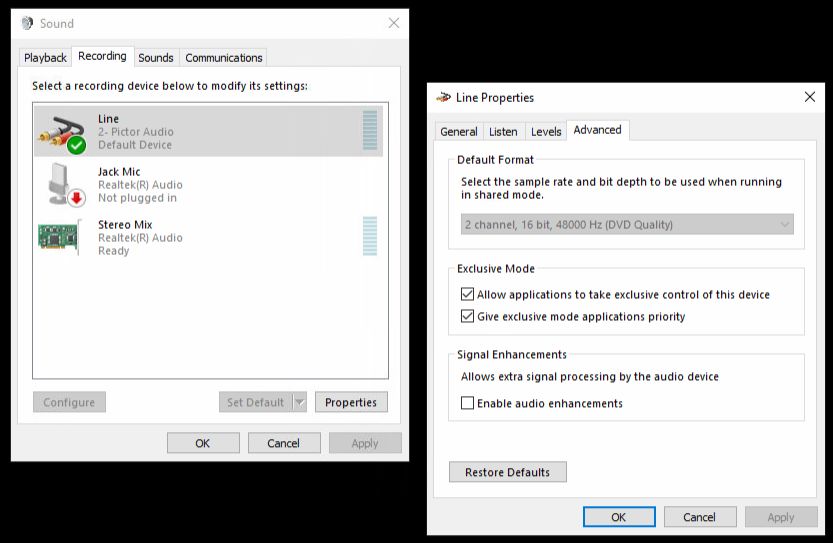
– Check in the Windows Sound settings if the correct input device is selected (Pictor Audio) and that its volume is set to 100 (this can be adjusted in the device properties). If you get an empty sound file when recording, and can’t hear sound playback, this is likely to be the issue.
Also make sure your input is not muted, this can happen if another program (such as Skype) is running and considers the input as a microphone, setting it to mute.
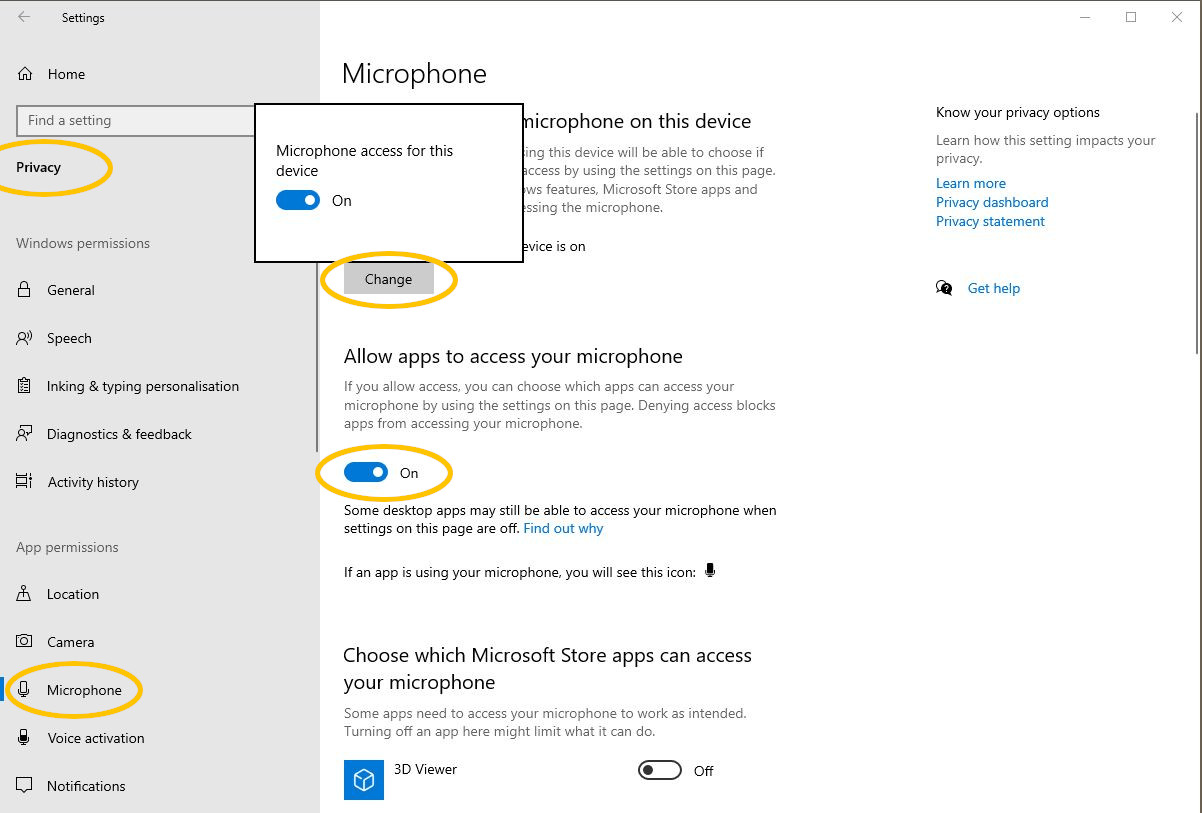
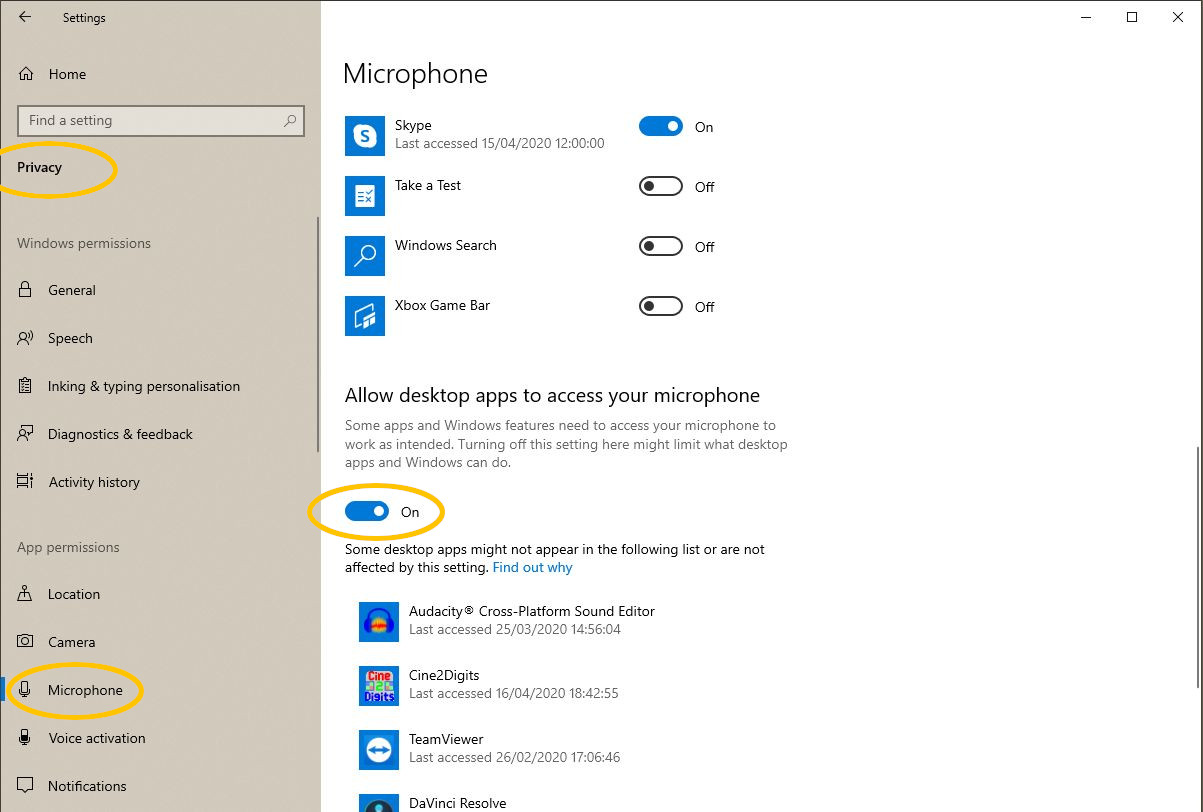
– Check in the Windows Privacy settings of the Microphone that access is given for the device.
There are three settings that must be ‘On’ (see screenshots): General Microphone access (use the ‘Change’ button), apps access, and desktop apps access.
– Check that you don’t have a special signal processing or “enhancement” activated for the audio device:
From the “Sound settings” window, click on “Device properties” under “Input”, then finally on “Additional device properties”.
In the “Advanced” tab, make sure to disable “Signal Enhancements”.
On the scanner:
– For Pictor 2019: Make sure the audio head is in the upper position.
– For advanced users (only do this if all other options are not helping): Check if the alignment of the head is correct. The brown magnetic stripes on the film should contact the two tracks on the magnetic head. Please refer to the manual for the adjustment procedure.