
The computer does not boot with the Filmfabriek USB Key plugged in
If you have a Filmfabriek USB license key plugged into your computer, it may not boot correctly and you may see only a black screen or the following error:
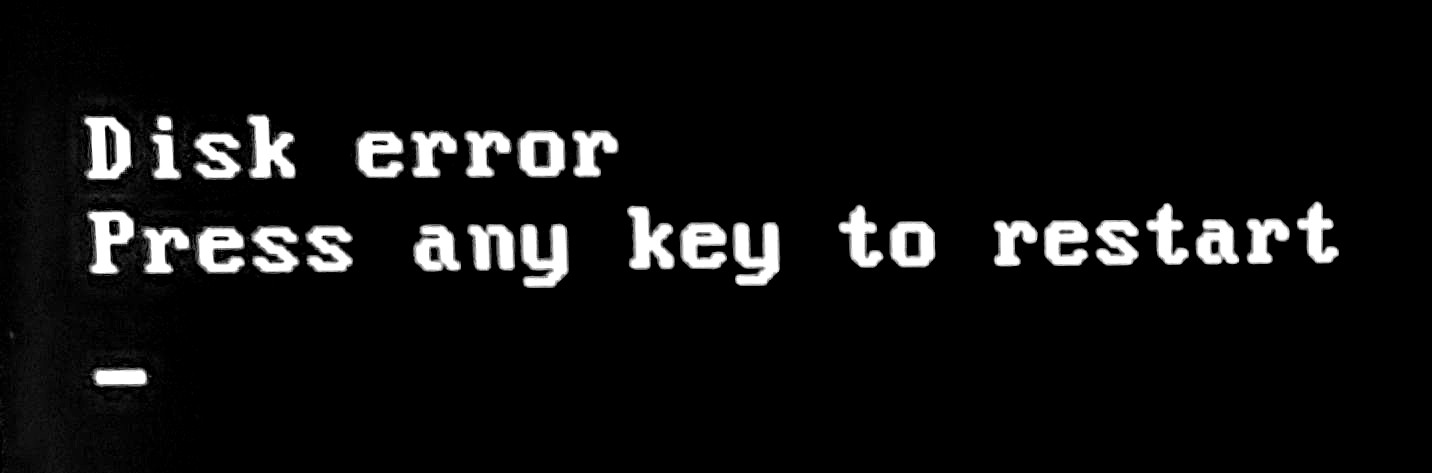
This is due to the BIOS (the system handling the starting up of the computer, before Windows starts) looking for a system on the key but not finding one.
You can ignore this message and just press a key, however it may still be stuck or restart and give the same error.
The easy solution is to remove the USB key and restart.
However, if you prefer to leave the key plugged into the computer at all times, you can disable the search for a system on a USB device in the BIOS.
When the computer starts, press ESC or F10 (this works for HP workstations, if you are using another computer, the key to press may be different. Follow the indications on screen in the startup display).
You will find yourself in the BIOS configuration. Note that it can differ from the screenshots and description below if you are using another version or a different computer.
Click on “Advanced” then on “Boot options“:
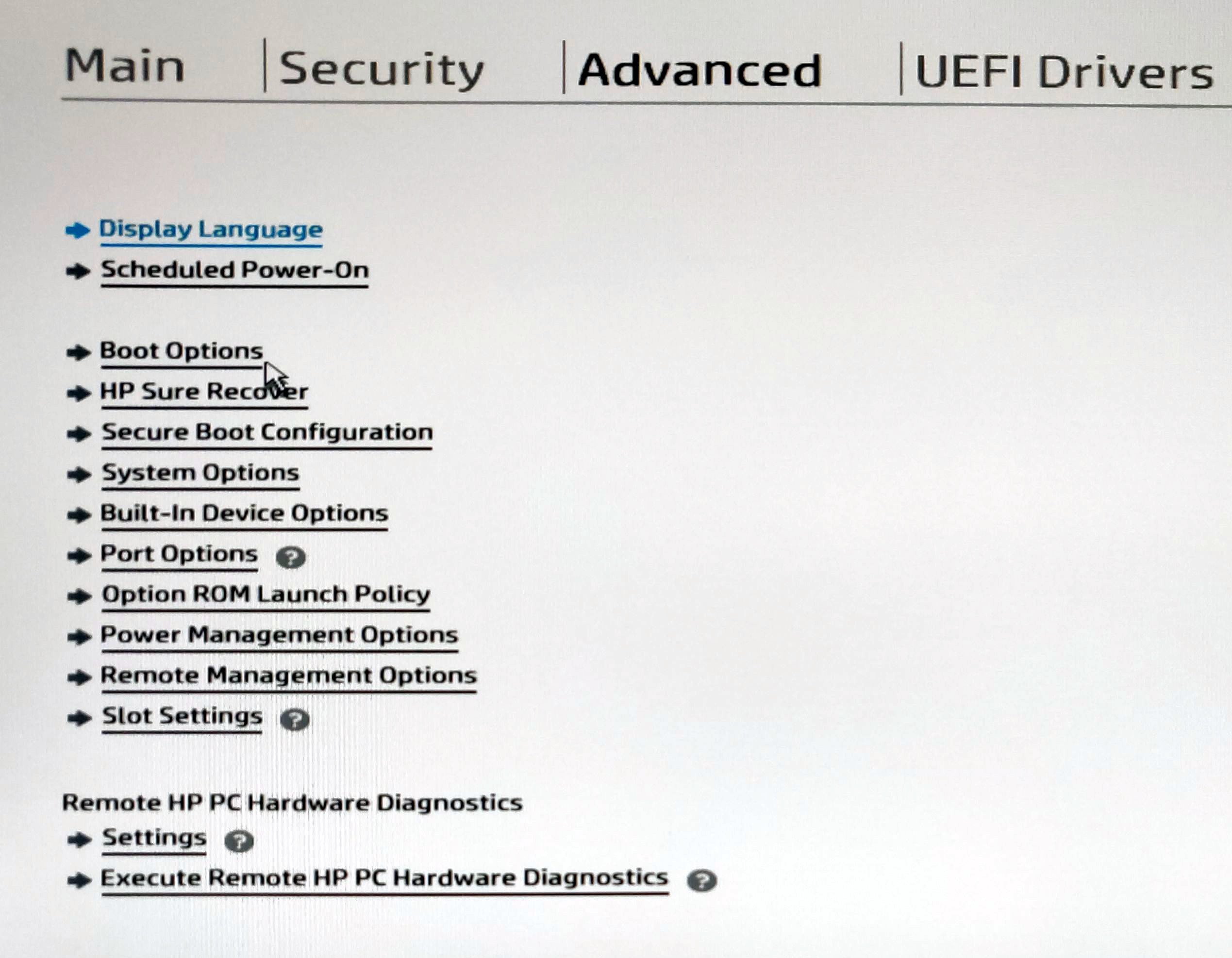
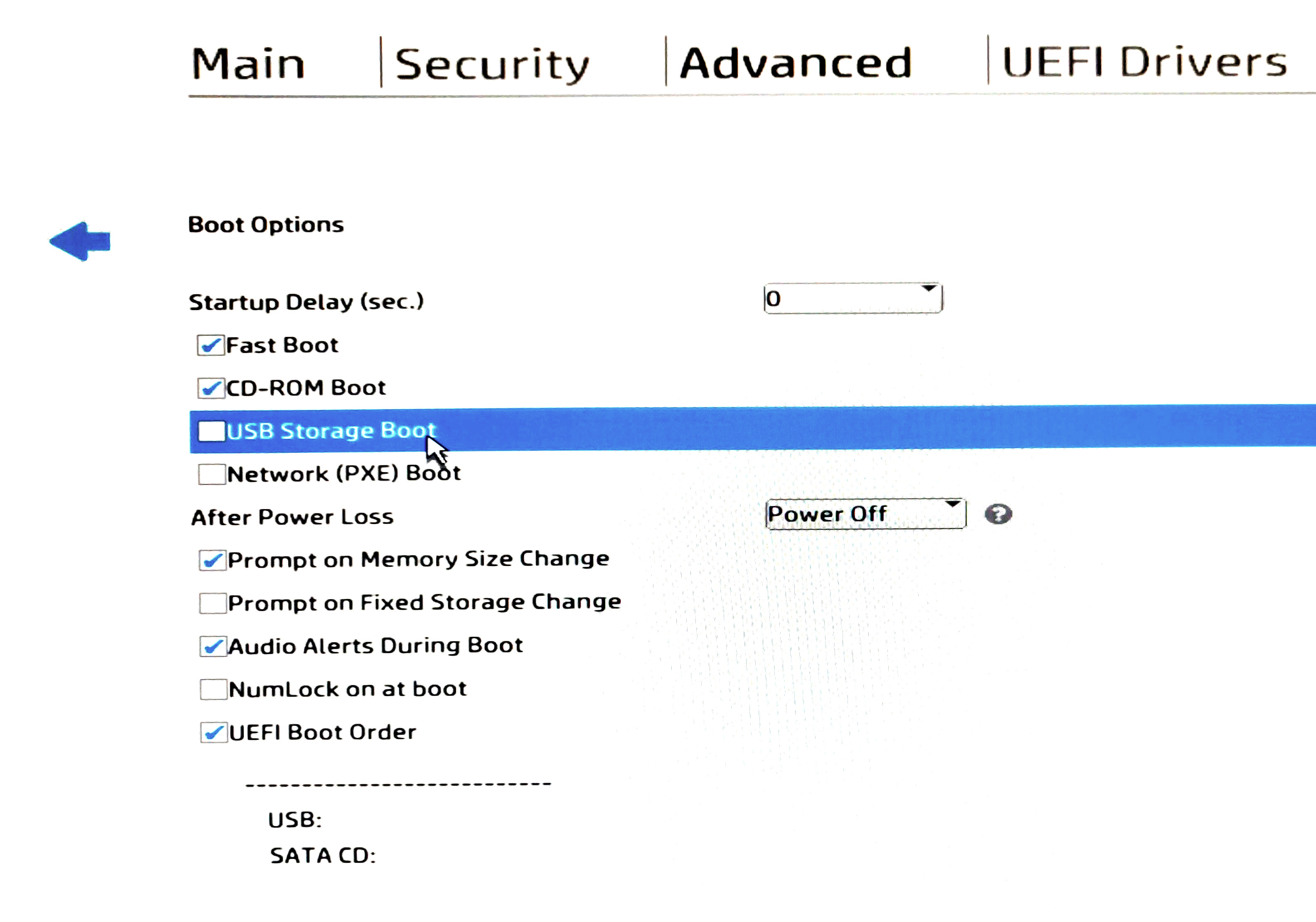
Disable “USB Storage Boot“, then go back to the Main menu.
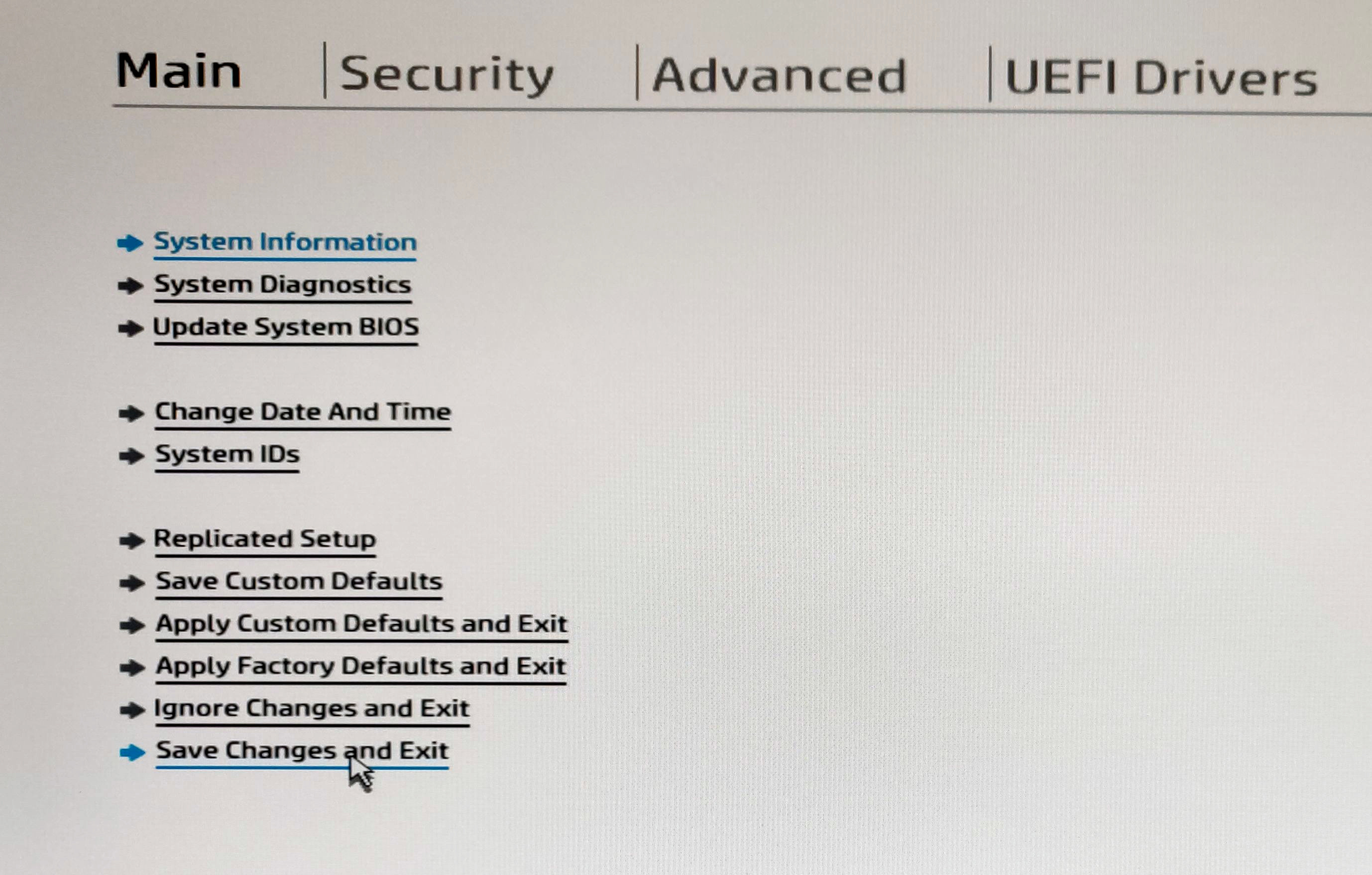
Save the changes and exit the BIOS settings.
When you next start your computer, it will not look for a system on the connected USB devices anymore.
You can restore the functionality by following the same instructions and enabling the “USB Storage Boot” option.