
Gamma settings
Gamma, or “gamma correction”, is a basic colour and brightness adjustment.
It is required to get the best looking result as most display devices obey a non-linear law in the way they can represent the brightness variations in the images (as does film). This particularity, the “reverse gamma response” of devices (usually in the range of 1.8 to 2.2, or 2.4), needs to be compensated with a “gamma correction” in order for the images to look “good” on the display (without it, an image with linear brightness values will look darker than intended and lacking details in the dark parts). This correction will need to be applied either when capturing or in the post processing chain.
Please read the following to understand how and when to use gamma correction in Cine2Digits.
Principle:
Colour and brightness values can be transformed following a curve representing how each original colour and/or brightness value will result. Gamma correction is effectively a 1-D lookup table (LUT), a direct function transforming input values into a “corrected” output value. To understand it better, you can display the “C2D LUT Transfer Graph” in Cine2Digits, by clicking on the “RGB Gamma” menu button and then enable “Show C2D LUT Graph”.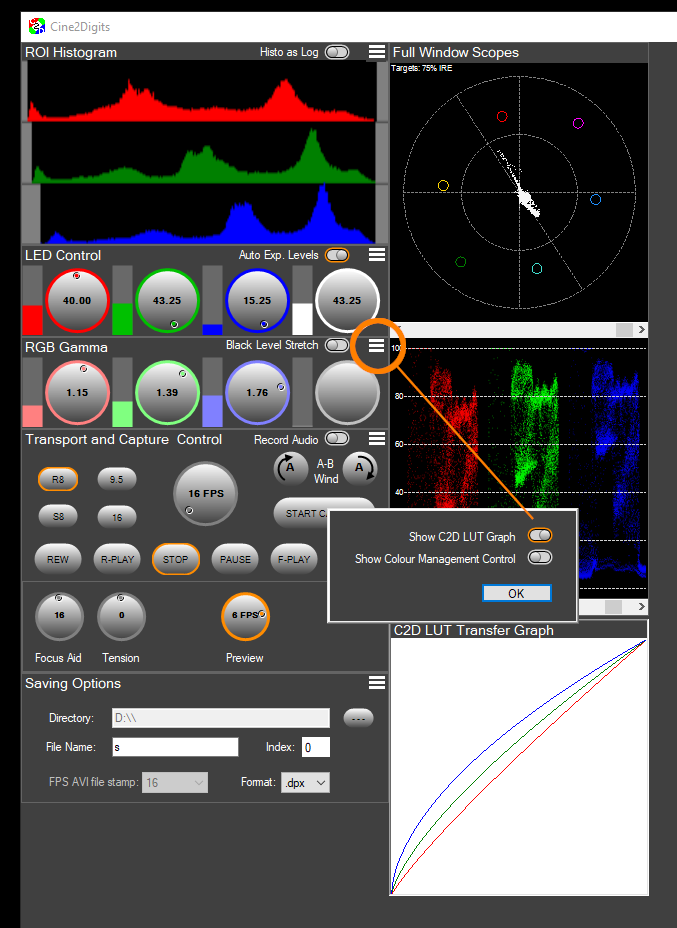
The graph shows how the values are transformed. The horizontal axis represents the original values (all the possible pixel values in 12-bit) and the vertical axis represents the values after applying the transformation, forming the correction curve.
A Gamma of 1.0 means no transformation, the gamma “curve” is linear, the output values are the same as the original values.
A Gamma of less than 1.0 means the correction curve will be concave and output values will be lower than the original values, following a logarithmic transformation.
A Gamma of more than 1.0 means the curve will be convex and output values will be higher than original values (maximum values don’t change). Defining a convex curve will give more amplitude to the lower values (darker pixels) while sacrificing some amplitude for the brighter values. This is usually the desired outcome as it makes dark parts of the image brighter and with more visible details, looking better on most devices (the slight compression that happens in the high values is less noticeable to the eye than the benefit in the dark values). Overall the rendering of the corrected pixel values on the display device should give the expected image, with expected brightness and contrasts.
A typical Gamma would be in the range of 1.8 to 2.2. A gamma correction that is too strong will reduce the contrasts too much and give a washed-out appearance to the image (see below for Black levels).
Gamma correction in Cine2Digits:
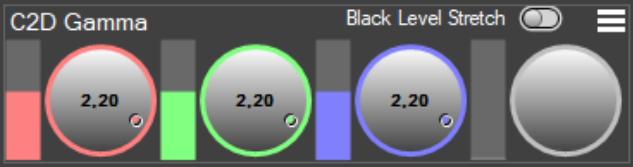
This curve is defined by the “RGB Gamma” buttons in Cine2Digits. If only the white button is used, the Gamma correction will be the same for the three colour channels, effectively only impacting brightness. Otherwise, different curves will be applied to the different channels, allowing boosting or reducing individual colours. This will primarily be useful for faded colour films.
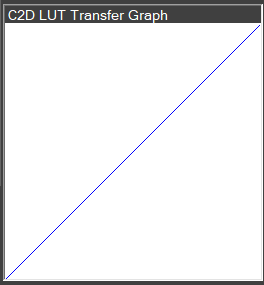
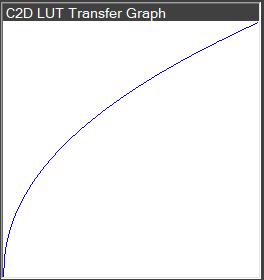
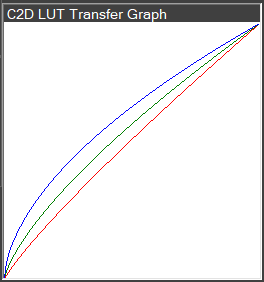
Linear “curve” (Gamma of 1.0), Log curve (Gamma of 2.2 for all three channels), Log curve with different RGB Gammas.
Black levels: When applying Gamma correction, the minimum values (darkest pixels) are made brighter and blacks will therefore appear less deep. The “Black Level Stretch” option can help reduce this effect by applying a linear stretch increasing contrast in the low levels by pulling the blacks to the minimum value for a given gamma correction.
Gamma and bit depth: It is important to note that the gamma curve in C2D is applied on the 12-bit data coming from the camera. If you are saving in 12-bit TIFF images, you do not need to use the Gamma correction in Cine2Digits (unless you want to see the direct result of the transformation or don’t intend to do any post processing work on the images) as you will be able to apply transformations with the same precision later on, in a colour grading software. If you are capturing to DPX, or particularly to AVI, you should use the Gamma correction in C2D directly as your output data will be only 10-bit or 8-bit, respectively, and further transformation will therefore be less precise: a gamma correction done in post on an AVI file would be done in the 8-bit colour space, increasing the risk of colour banding.
See here for more details about bit depth and formats.
Gamma works differently when in negative mode (see here), do not use the “RGB Gamma” controls when scanning in negative mode.